Download a report as a PDF
View the report as a document and download it as a PDF
Every report is also available as a PDF document, with the same sections as in the platform. Use it to share the report with people who do not use Wheelop, to attach it to a sale or to keep a copy.
View the PDF
- Open the report.
- In the menu at the top right (⋯), select View PDF.
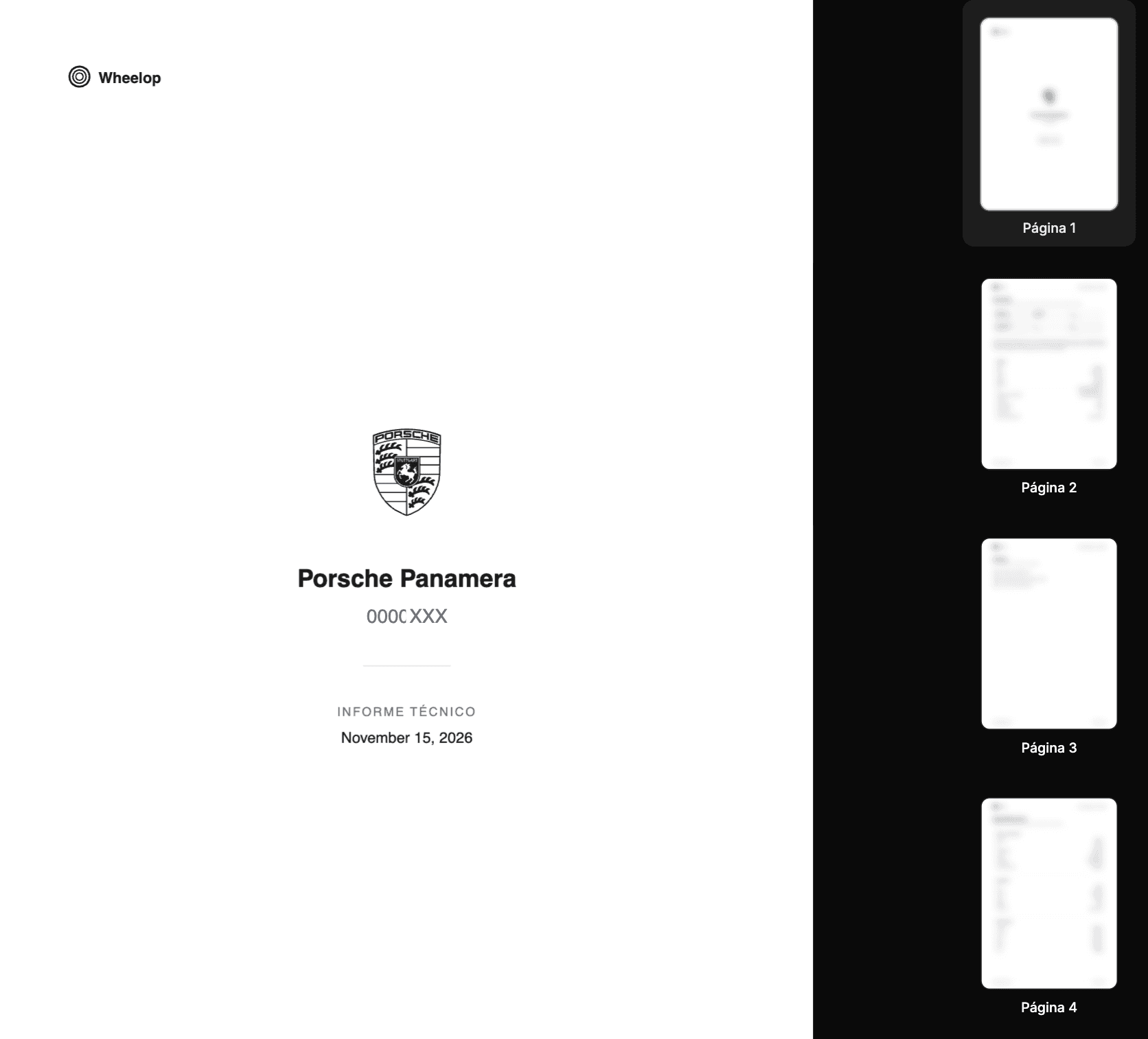
The PDF opens inside Wheelop. The pages are shown on the left, and their thumbnails on the right: select a thumbnail to go to that page. You can also zoom in and out.
To go back to the sections of the report, select Go to dashboard in the same menu.
Download the PDF
- Open the report, or find it in the list of reports.
- In the menu of the report (⋯), select Download.
The PDF is saved on your device. It is generated at that moment with the current data of the report.
You can also download the PDF from the files of the report, together with the official documents of its recalls.
What the PDF includes
The PDF starts with a cover with the make, the model and the license plate of the vehicle and the date of the report, followed by the sections of the report: overview and alerts, specifications, listings, technical inspections, mileage, owners, valuation, market and recalls, among others.