View your reports
Find the reports of the workspace and navigate their sections
The list of reports
In the sidebar, open Reports to see all the reports of the active workspace.

| Column | What it shows |
|---|---|
| Brand | The make of the vehicle. |
| Model | The model of the vehicle. |
| License plate | The license plate the report was created from. |
| VIN | The vehicle identification number (chassis number). |
| Created at | The date the report was created. |
From the list you can:
- Sort the reports by any column: select its header.
- Show or hide columns with the button to the left of Create.
- Load more reports: the list loads the next ones as you scroll down.
- Open a report: select its row.
The menu at the end of each row (⋯) gives you direct access to the actions of the report: view the PDF, open the report, see its files, download it or delete it.
Navigate a report
When you open a report, the sidebar shows its sections. Select one to go to it. The report always opens on the Overview.
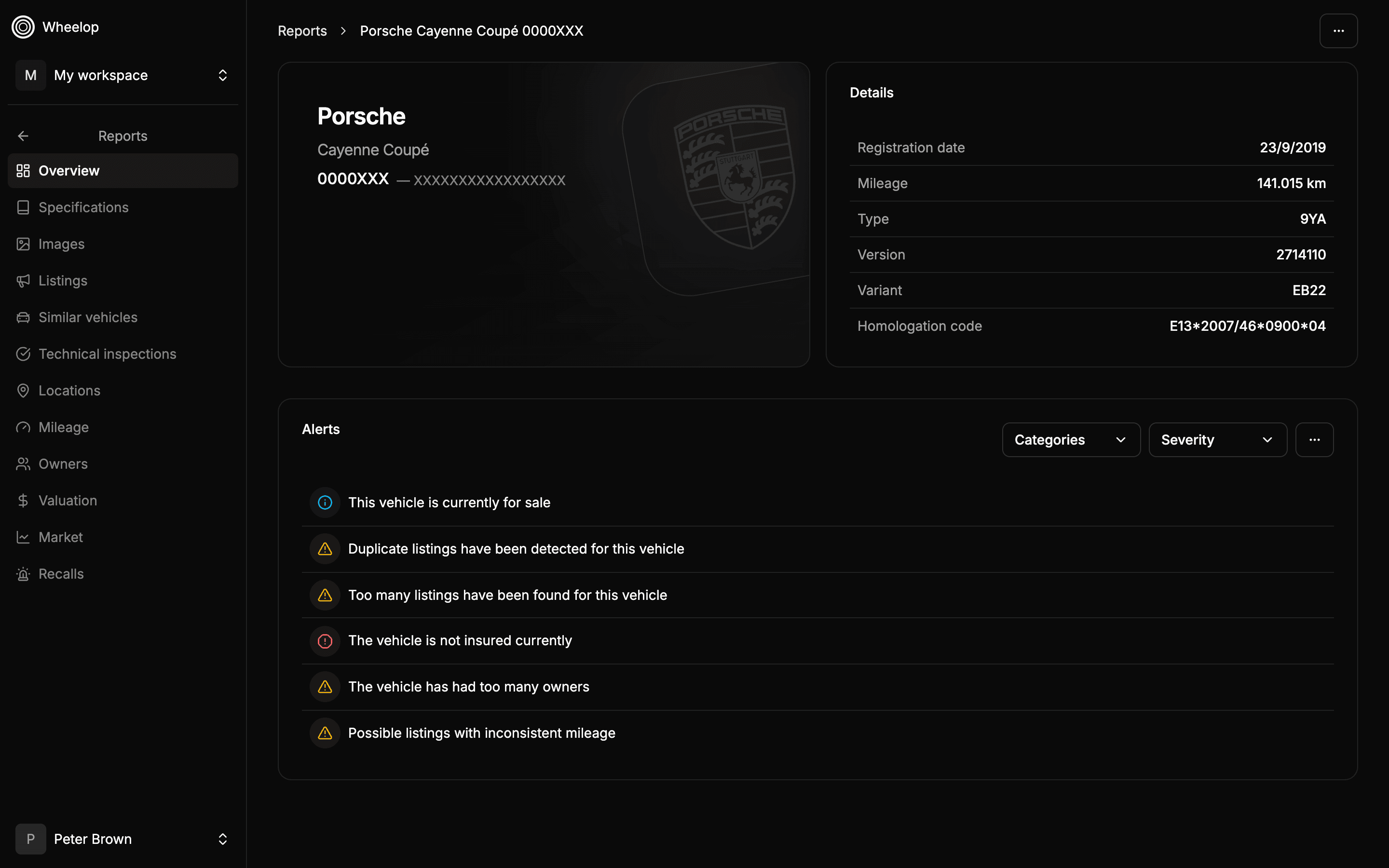
At the top of the report you see the make, the model and the license plate of the vehicle. Select Reports to go back to the list.
The menu at the top right (⋯) has the actions of the report: view the PDF, see its files, download it and delete it.
Keep in mind
- The list only shows the reports of the active workspace. To see the reports of another workspace, switch the active workspace.
- All the members of the workspace see the same reports, whoever created them.