Change your password
Replace the password of your account with a new one
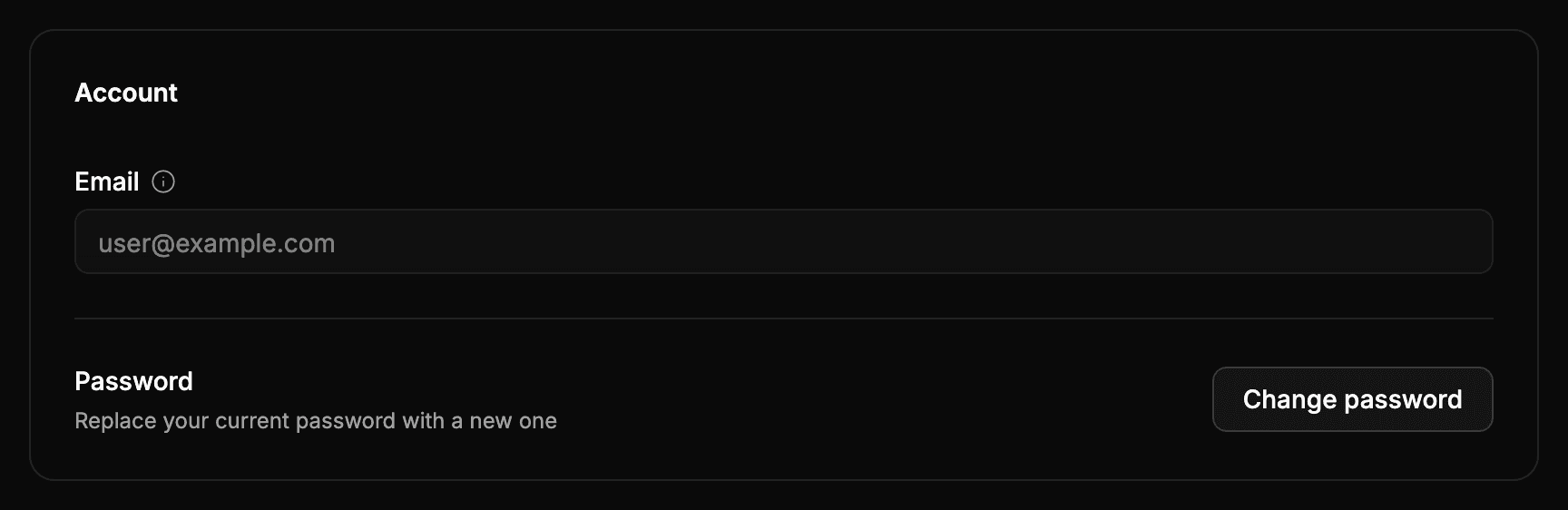
Open the password change
- Open your profile: select your name, at the bottom of the sidebar, and then Settings.
- In the Account section, select Change password.
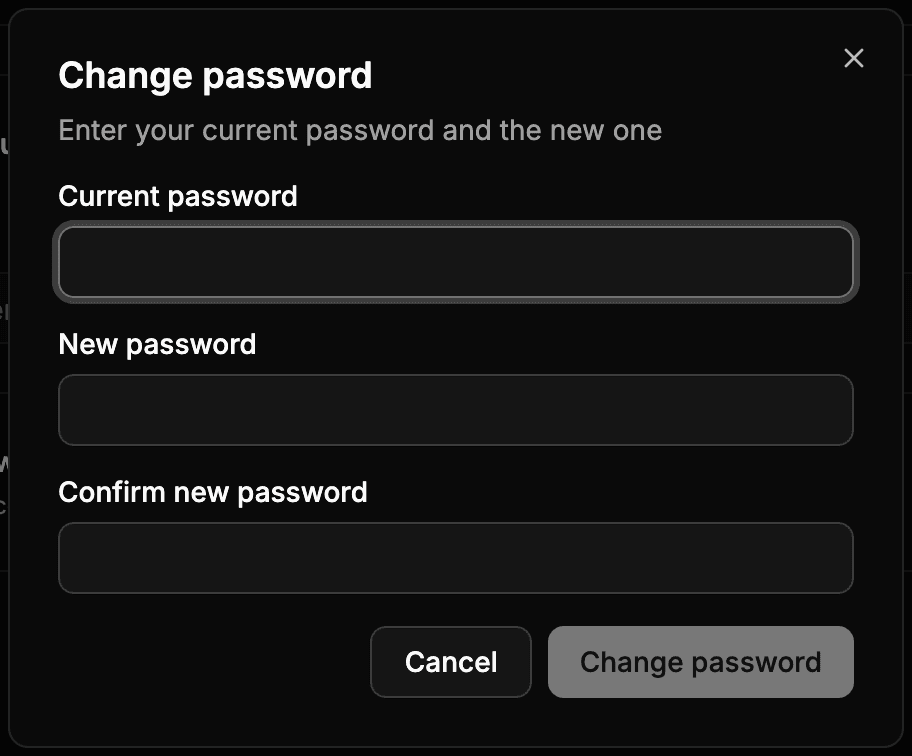
Enter the new password
- Enter your Current password.
- Enter the New password and repeat it in Confirm new password.
- Select Change password.
When the password is changed, Wheelop shows Password changed successfully. From then on, sign in with the new password.
Password requirements
The new password must be different from the current one, have between 8 and 50 characters and contain at least:
- one lowercase letter and one uppercase letter,
- one number,
- one symbol, such as
!,@,#or?.
If the current password is not correct, Wheelop shows The current password is not correct and does not change it.