Manage the members
See who belongs to a workspace, change their role or status and remove them
The members of a workspace are the people with access to it. All the members can see who belongs to the workspace, and the owner can change their role, block them or remove them.
See the members
- Select your name, at the bottom of the sidebar, and then Settings.
- In the settings menu, select Members.
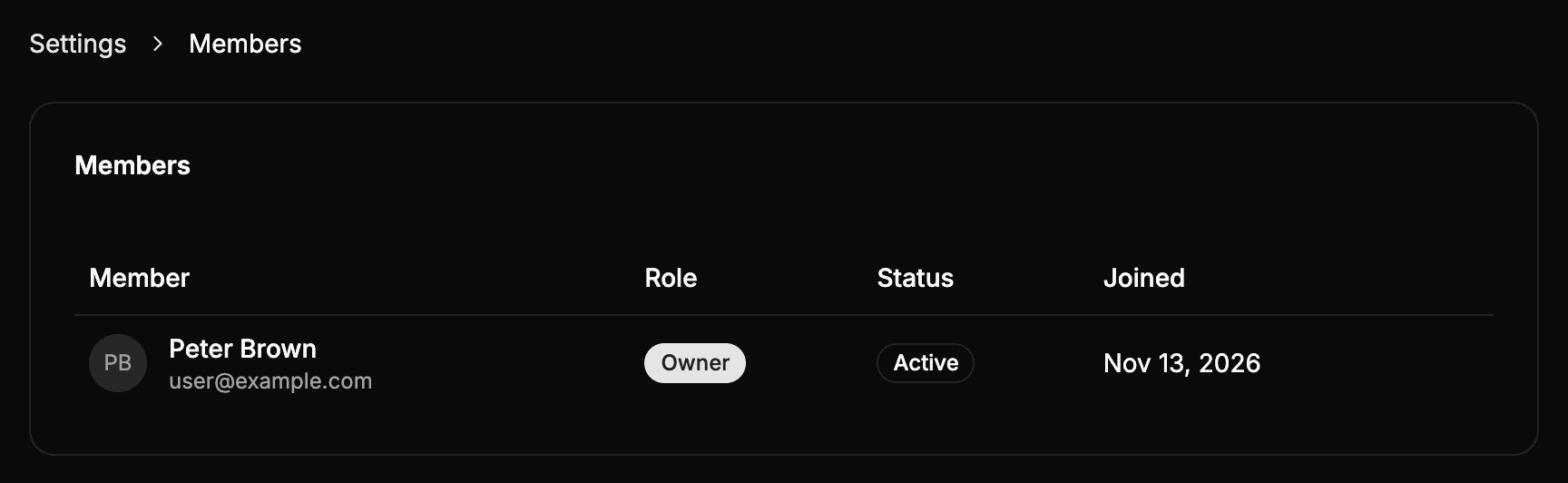
The list shows the members of the active workspace:
| Column | What it shows |
|---|---|
| Member | The display name and the email of the member. |
| Role | Owner, Admin or Member. See Roles and permissions. |
| Status | Active or Blocked. |
| Joined | The date the member joined the workspace. |
When the workspace has many members, select Show more, below the list, to load the next ones.
Change the role or the status of a member
Only the owner of the workspace can change the role or the status of a member.
- In the row of the member, open the actions menu (⋯) and select Edit.
- Choose the new Role:
- Admin: manages the API keys and sees the credits and the billing of the workspace.
- Member: uses the workspace, without access to its settings.
- Choose the Status:
- Active: has access to the workspace.
- Blocked: cannot access the workspace or use its API keys until reactivated.
- Select Save changes.
The changes apply at once: the next time the member uses Wheelop, they have the permissions of their new role.
Block a member
Blocking a member removes their access to the workspace without removing them from it: they keep their role, and the owner can give them access again by changing their status back to Active.
While a member is blocked:
- The workspace does not appear in their workspace selector.
- Their API keys of the workspace stop working.
Block a member when their access must be stopped for a while, for example during an absence. If they are not going to work on the workspace again, remove them.
Remove a member
Only the owner of the workspace can remove members.
- In the row of the member, open the actions menu (⋯) and select Remove.
- Confirm with Remove.
The member loses their access to the workspace at once, and their API keys of the workspace stop working. The reports created in the workspace stay in it.
The owner
The owner of the workspace has no actions menu: there is only one owner, the person who created the workspace, and they cannot be changed, blocked or removed.