Billing details
Enter the name, the tax ID and the address shown on your invoices
The billing details are the details of the account holder shown on the invoices and receipts of your purchases of credits. They belong to the workspace, so they apply to all its purchases.
The owner and the admins can see them, but only the owner can change them.
Enter your billing details
- Select your name, at the bottom of the sidebar, and then Settings.
- In the settings menu, select Billing details.
- Fill in the fields and select Save changes.
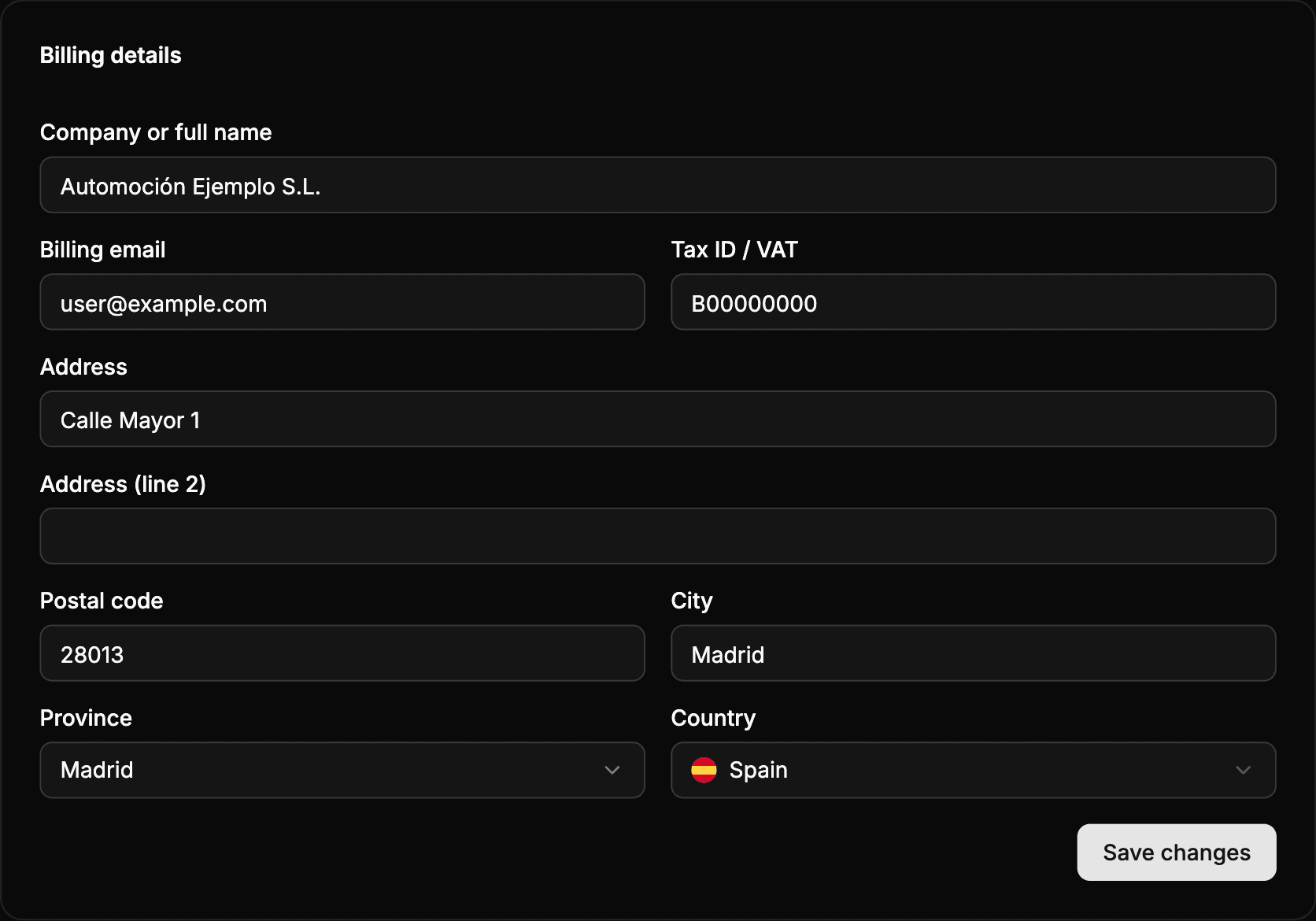
| Field | What to enter |
|---|---|
| Company or full name | The name of the company, or your full name if you buy as an individual. Required. |
| Billing email | The email the invoices are associated with. Required. |
| Tax ID / VAT | The tax identification number. Optional. Its format is checked when you save. |
| Address | The street and the number. Required. As you type, addresses are suggested: select one to fill in the rest of the fields. |
| Address (line 2) | The floor, the door or other details of the address. Optional. |
| Postal code | Required. |
| City | Required. |
| Province | Optional. It is filled in automatically from the postal code. |
| Country | For now, only Spain. |
If the workspace has not made any purchase yet, the page says They are filled in on the first purchase. You can also fill them in here., and the button is Enable billing.
When you save, the notice Billing details saved appears.
Change them when you buy
You can also add or change the billing details in the payment step of Buy credits, with Add or Edit. The changes are saved here and applied to that invoice and the following ones.
Keep in mind
- The changes apply to the invoices of the following purchases, not to the ones already issued.
- If the tax ID does not have a valid format, the notice The tax ID is not valid. Please check its format. appears and the changes are not saved.
- Save changes is only enabled once you have changed a field.