Buy credits
Add credits to the balance of the workspace by choosing an amount or a discounted pack
Credits are bought for the active workspace and are added to its balance as soon as the payment is completed. Only the owner of the workspace can buy them.
Choose how many credits to buy
- Select your name, at the bottom of the sidebar, and then Settings.
- In the settings menu, select Credits.
- Select Add credits.
You can also get here from the alert You don't have enough credits to generate the report, with its Buy credits button.
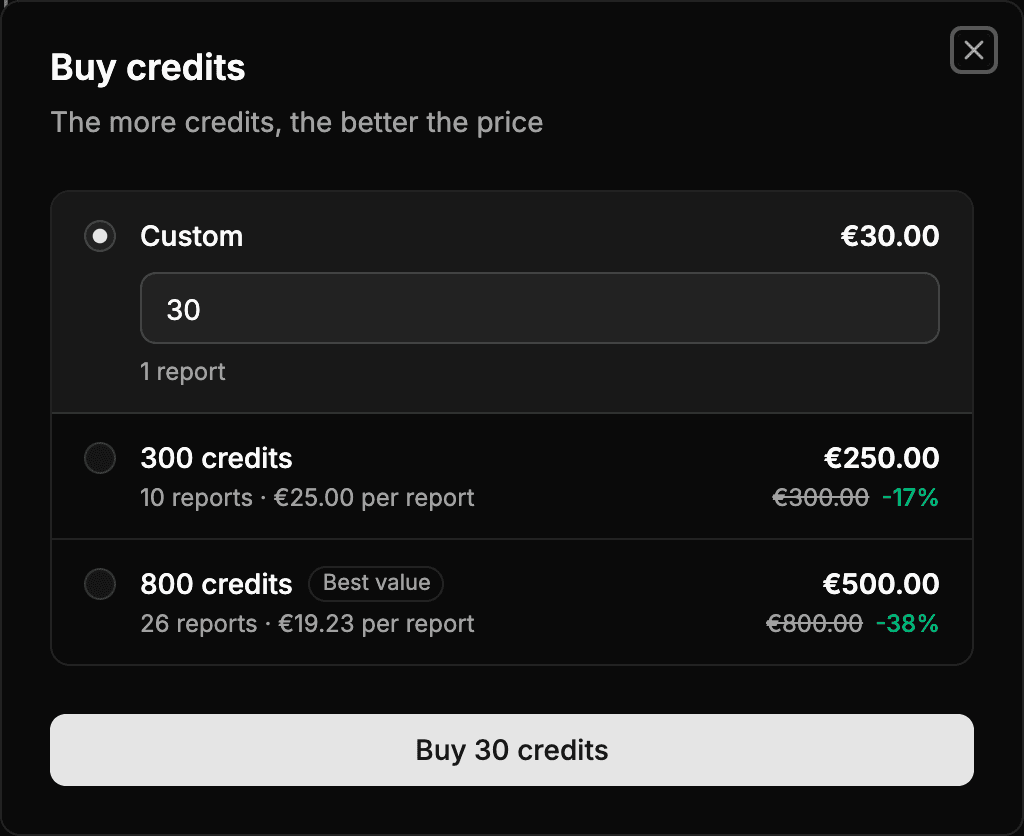
The dialog offers two ways to buy:
| Option | How it works |
|---|---|
| Custom | Type how many credits you want. The amount must be a multiple of the cost of a report (30 credits): if you type another one, it is adjusted to the nearest multiple. Below it, you see how many reports it is enough for. |
| Packs | Fixed amounts with a discount. Each pack shows how many reports it is enough for, the price per report and, crossed out, what those credits would cost bought one by one, with the percentage saved. The pack that saves the most has the Best value label. |
The prices of the dialog do not include VAT, which is added in the payment step.
Choose an option and select Buy … credits.
Pay
The dialog moves on to the payment, without leaving Wheelop:
- Review the summary: the subtotal, the discount (if you apply a code), the VAT and the total.
- Promotion code (optional): check Do you have a promotion code?, type it and select Apply. If you make a mistake, select Remove.
- Billing details: check the details that will appear on the invoice. Select Add, or Edit if you already have them, to change them. The changes are saved to your account and applied to this invoice and the following ones. See Billing details.
- Payment method: choose a saved card or enter a new one. See Payment methods.
- Select Pay …, with the total to pay.
If a promotion code brings the total to zero, no payment method is needed and the button becomes Redeem.
To change the amount before paying, select See other plans.
After paying
While the payment is being confirmed, the dialog shows Confirming the payment.... Once it is confirmed, it closes and the notice Credits added to your balance appears.
- The credits appear at once in the balance and in the movements, as Credit purchase.
- The purchase also appears in Usage, where you can follow how its credits are spent and when they expire.
- The payment appears in the Payment history, where you can download its receipt.
Some payment methods take you to another page to authorize the payment. When you finish, you return to the Credits page, with the credits already added.
If something goes wrong
- The payment could not be started: nothing has been charged. Try again in a few minutes.
- There are no credits for sale: no purchase options are available at the moment. Try again later.
- The tax ID is not valid. Please check its format.: correct the tax ID of the billing details.